01Purpose
Grif prepares copies of drawings and documents that can be opened and viewed but not printed, copied or edited. It is made for design offices, architects, engineers and anyone who sends documentation to clients, contractors or reviewers and does not want it used without permission.
Grif never changes the original files: the result is always saved as a separate file.
02Features
| Feature | What it does |
|---|---|
| Batch protection | The whole set of sheets is protected in one go; every file has its own progress and result. |
| PDF restrictions | Printing, copying text and graphics, editing, comments, filling in forms, page assembly — each permission is switched separately. AES-256 encryption. |
| Two sheet modes | Vector — the sheet stays sharp at any zoom. Image — the sheet becomes a 150–400 DPI picture with no text or lines left in the file. |
| Watermark | Text or a picture (logo); across the sheet or as a single mark in a corner, at an edge or in the center; color, opacity, size, angle, density. |
| Passwords | An owner password (lifts the restrictions) and an optional open password (the file will not open without it). |
| Conversion | Besides PDF it accepts DWG/DXF, DOC/DOCX/RTF/ODT, XLS/XLSX/XLSM/CSV and TXT and converts them to PDF, keeping the sheet size. |
| Merging | Combines several sheets into one PDF, for example to protect a whole set with one password. |
| Preview | Shows the sheet before and after protection; the comparison divider can be moved with the mouse or arrow keys. |
| Unprotect | Restores a file without restrictions using the owner password; it can find the password in the log by itself. |
| Issue log | When, which sheets, where they were saved and with which password they were protected. |
| File cleanup | Removes embedded files, JavaScript, auto-actions and, optionally, author and software details from the copy. |
| 10 interface languages | Russian, English, Chinese, Spanish, Hindi, Arabic (right-to-left), French, Portuguese, German, Japanese. |
03System requirements
| Component | Requirement |
|---|---|
| Operating system | Windows 10 version 1803 or later, or Windows 11; 64-bit (x64) only |
| Processor | x64, 2 cores or more |
| Memory (RAM) | 4 GB minimum; 8 GB or more for Image mode on large formats (A1, A0) at 300–400 DPI |
| Disk space | about 500 MB for the program and components, plus space for results (an Image-mode sheet takes from hundreds of kilobytes to tens of megabytes, depending on the size, DPI and density of the drawing) |
| Screen | 1280×720 or larger; the window adapts down to half the screen width |
| Windows components | Microsoft .NET Framework 4.7.2 or later (already included in Windows 10 1803+); Microsoft Edge WebView2 Runtime (included in Windows 11; the installer adds it if it is bundled with the build) |
| Rights | administrator to install; a standard user to work |
| For conversion (optional) | DOC, DOCX, RTF, ODT — Microsoft Word; XLS, XLSX, XLSM, CSV — Microsoft Excel; DWG, DXF — AutoCAD. These programs must be installed and activated. PDF and TXT need no third-party software. |
| Internet | not required — the program works fully offline |
The resulting files open in any PDF viewer. Adobe Acrobat Reader, Foxit, Microsoft Edge, Google Chrome and most other programs respect the restrictions.
04Installation and first start
- Run
Grif-Setup-2.0.0.exeand choose the setup language. - If .NET Framework 4.7.2 is missing, the installer warns you — install it via Windows Update and run the setup again.
- Optionally tick “Create a desktop shortcut” and click “Install”.
- Start Grif from the Start menu or the desktop.
On first start the interface language follows the Windows language (if it is not one of the ten, English is used). You can change the language at any time — see section 10.
05Interface
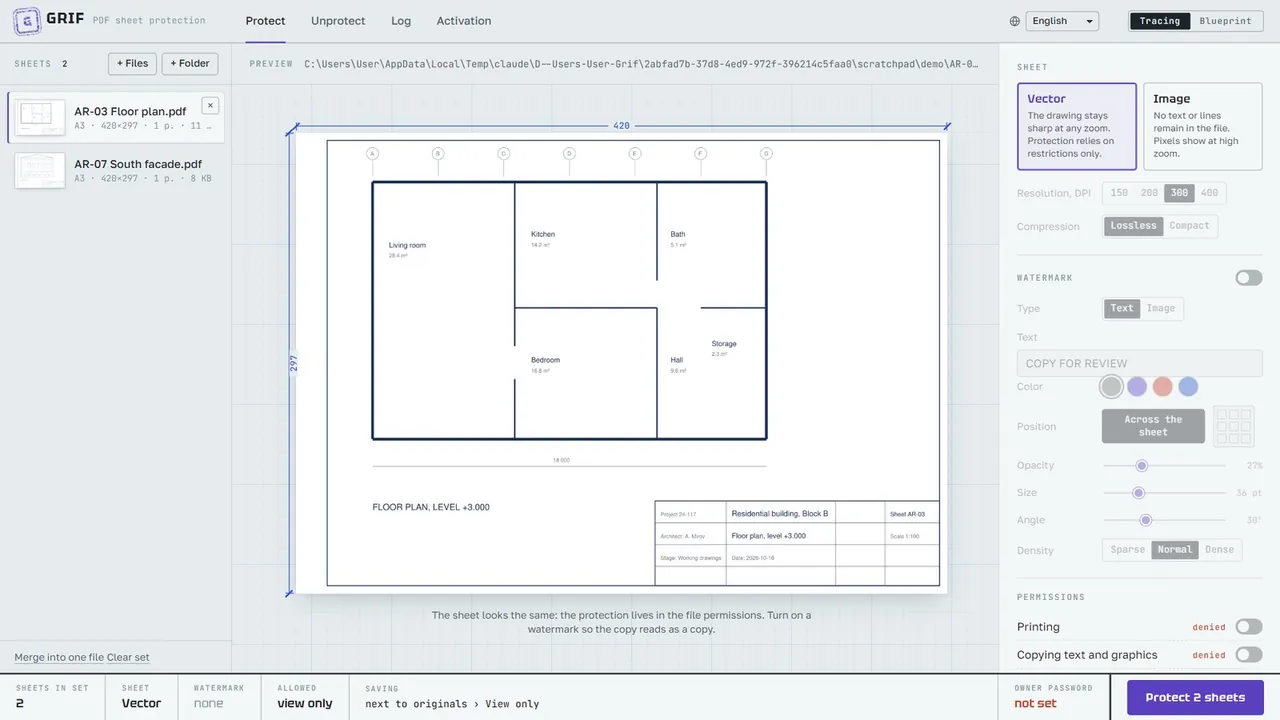
The window has four areas:
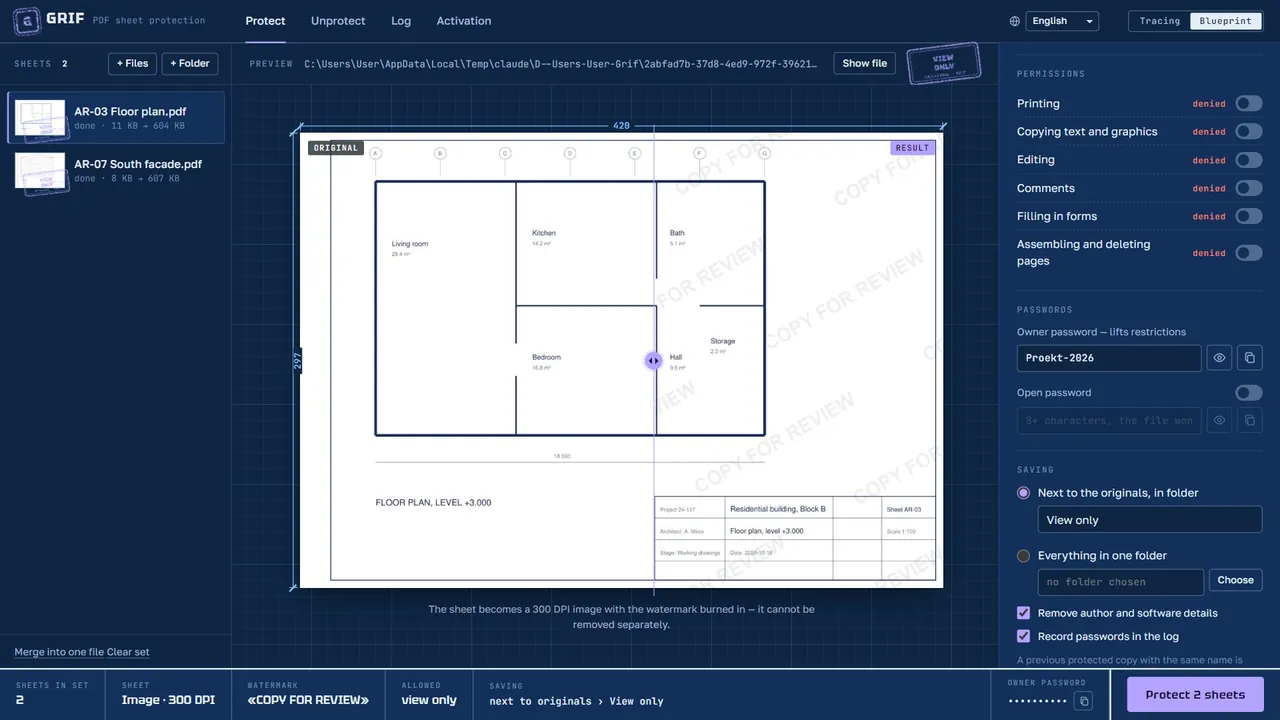
- Header — the “Protect”, “Unprotect”, “Log” and “Activation” tabs, the language list and the theme switch.
- Sheet set (left) — added files with thumbnails, sheet size, page count and file size.
- Preview (center) — the selected sheet before and after protection, with its dimensions in millimeters.
- Settings (right) — sheet mode, watermark, permissions, passwords and saving.
At the bottom, like the title block of a drawing, the job summary and the main button are shown: “Protect”, “Unprotect” or “Activate”, depending on the tab.
06Protecting sheets
6.1. Add sheets
- drag files or a folder straight into the window;
- or click “+ Files” (Ctrl+O) or “+ Folder” — all suitable files are taken from the folder.
Files that are not PDF are converted automatically and marked “converted to PDF”. The sheet size and scale stay the same as in the original. To remove a sheet from the set, hover over it and click “×”; “Clear set” removes them all.
Merge into one file (shown when there are two or more sheets) joins the set into “Merged sheets.pdf” in list order — you can then protect it as a single file.
6.2. Check the preview
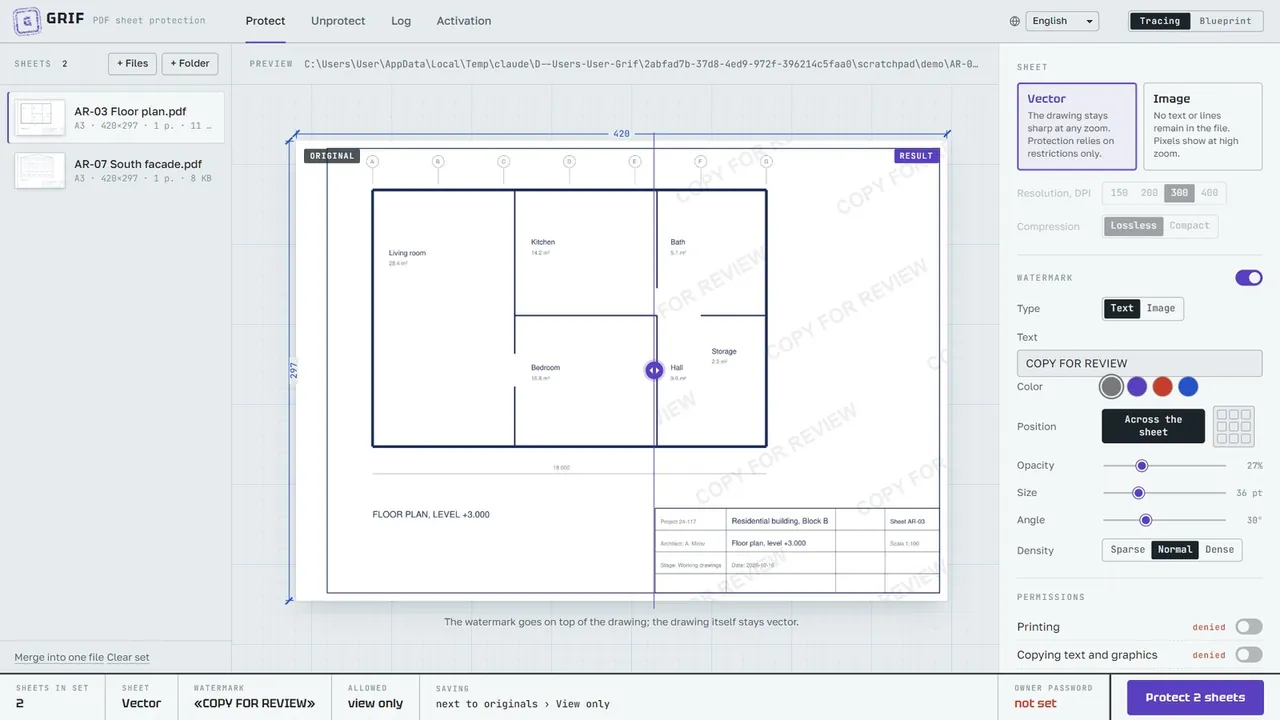
Click a sheet in the list to see it in the preview. Below the sheet a note explains exactly what will change.
6.3. Choose the sheet mode
| Vector | The sheet stays vector and sharp at any zoom. Only the PDF restrictions protect it. |
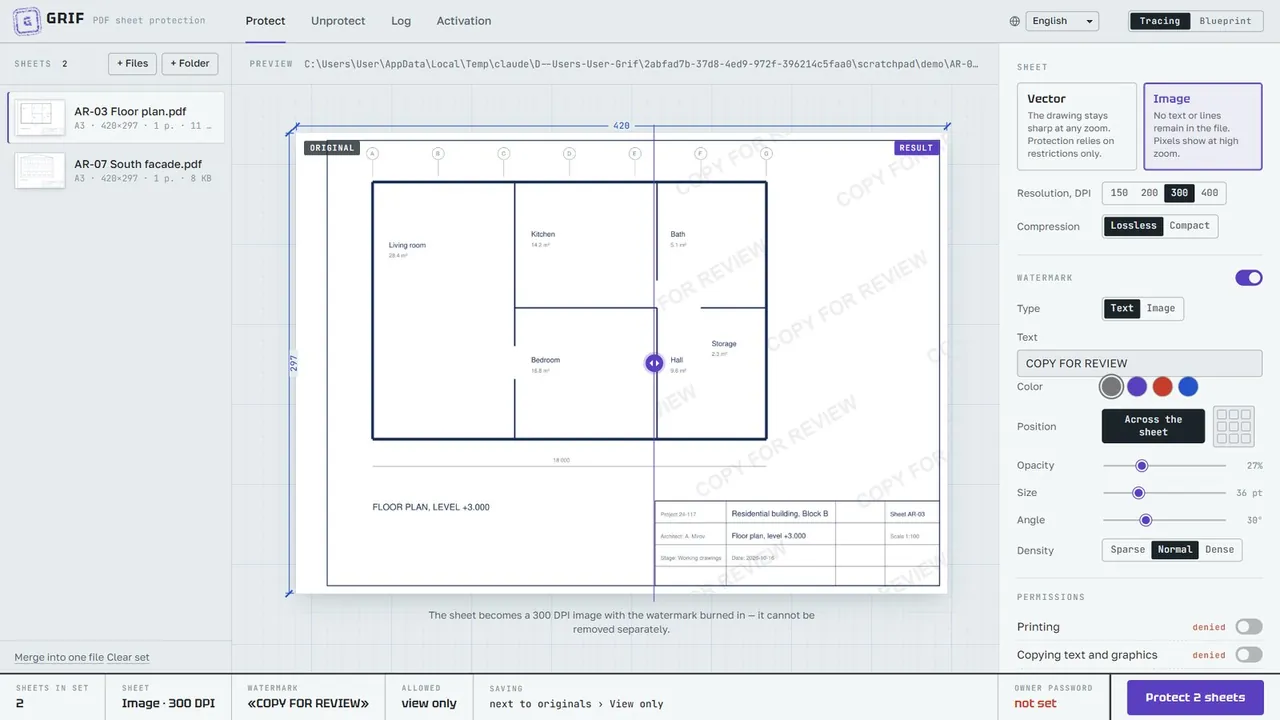
| Image | The sheet becomes a picture. Choose the resolution (150, 200, 300 or 400 DPI) and compression: “Lossless” (PNG) or “Compact” (JPEG). Text and lines cannot be selected or copied even in programs that ignore restrictions. |
6.4. Set up the watermark
Turn on the “Watermark” switch and choose:
- Type — text (up to 60 characters, “COPY FOR REVIEW” by default in the interface language) or an image (PNG, JPEG, WebP, GIF, BMP — for example, a logo);
- text Color — graphite, violet, red or blue;
- Position — “Across the sheet” (a grid of marks) or one of nine spots: corners, edge centers, center;
- Opacity (5–80%), Size (14–96 pt), Angle (0–90°);
- Density — sparse, normal, dense (for “Across the sheet”).
In Vector mode the watermark lies on top of the drawing; in Image mode it is burned into the picture and cannot be removed separately.
6.5. Set the permissions
By default everything is denied — the file is “view only”. Turn on the switches you need: printing, copying, editing, comments, filling in forms, assembling and deleting pages. Next to each one its state is shown: “allowed” or “denied”.
6.6. Choose passwords
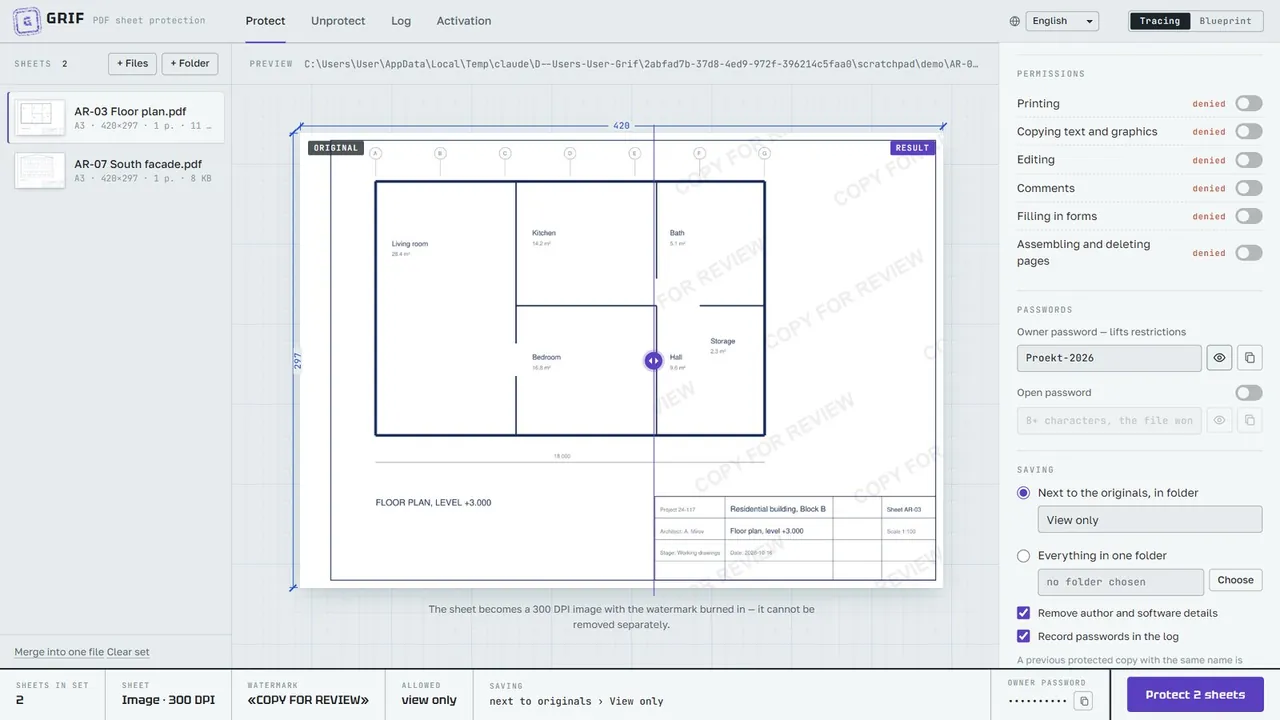
- Owner password — required, at least 4 characters. Only it lifts the restrictions.
- Open password — optional, at least 8 characters and different from the owner password. Without it the file will not open at all — send it to the recipient separately.
6.7. Choose where to save
- Next to the originals, in folder — by default “View only” next to each original file;
- Everything in one folder — click “Choose” and pick a folder.
Files dropped into a browser window (in browser mode) are saved to “View only” on the desktop. The “Remove author and software details” box clears the document properties.
A previous protected copy with the same name is replaced. Originals and any unprotected files are never overwritten — if the name is taken, the result gets a different one, for example “Plan (2).pdf”.
6.8. Start the protection
Click “Protect N sheets” at the bottom right. Each sheet shows its own progress; the overall progress runs above the title block. The “Stop” button interrupts processing.
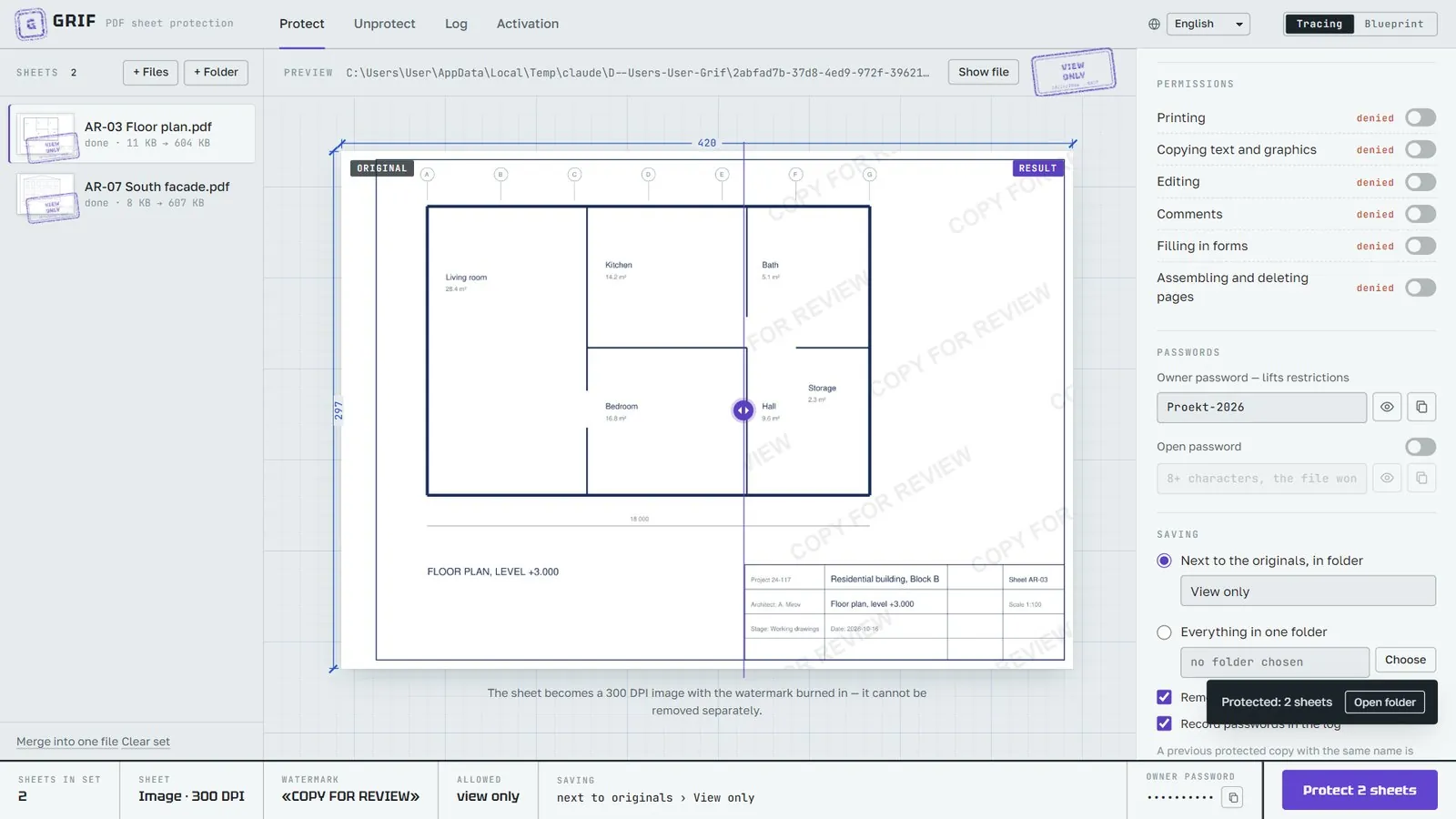
Finished sheets get a stamp. “Show file” opens the folder with the result selected; “Open folder” in the notification opens the results folder. If a sheet could not be protected, the reason is shown right on its card.
07Removing protection
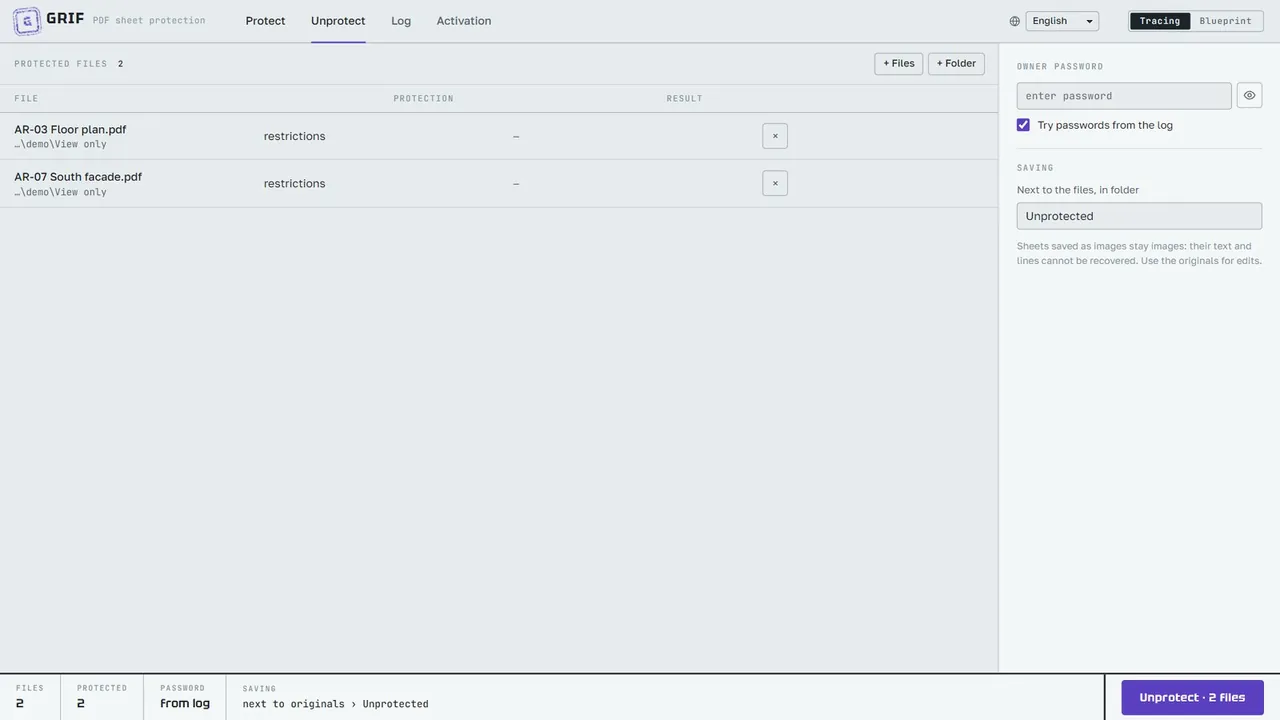
- Open the “Unprotect” tab and add protected PDFs (drag them in, or use “+ Files” or “+ Folder”). The “Protection” column shows what the file has: restrictions or an open password.
- Enter the owner password. If the set was protected in Grif and “Try passwords from the log” is on, you may leave it empty — the program will try the passwords from the log.
- Set the result folder (by default “Unprotected” next to the files) and click “Unprotect”.
Sheets saved as images stay images: their text and lines cannot be recovered. Use the originals for edits.
08Log

Every protection and every removal of protection goes into the log. An entry shows the date and time, sheet mode, watermark, permissions, owner password (the eye button shows it, the next one copies it) and where each file was saved. “Open folder” and “show” lead to the results, “Delete” removes the entry, “Clear log” removes all entries. The log keeps the last 300 entries.
09Activation and trial mode
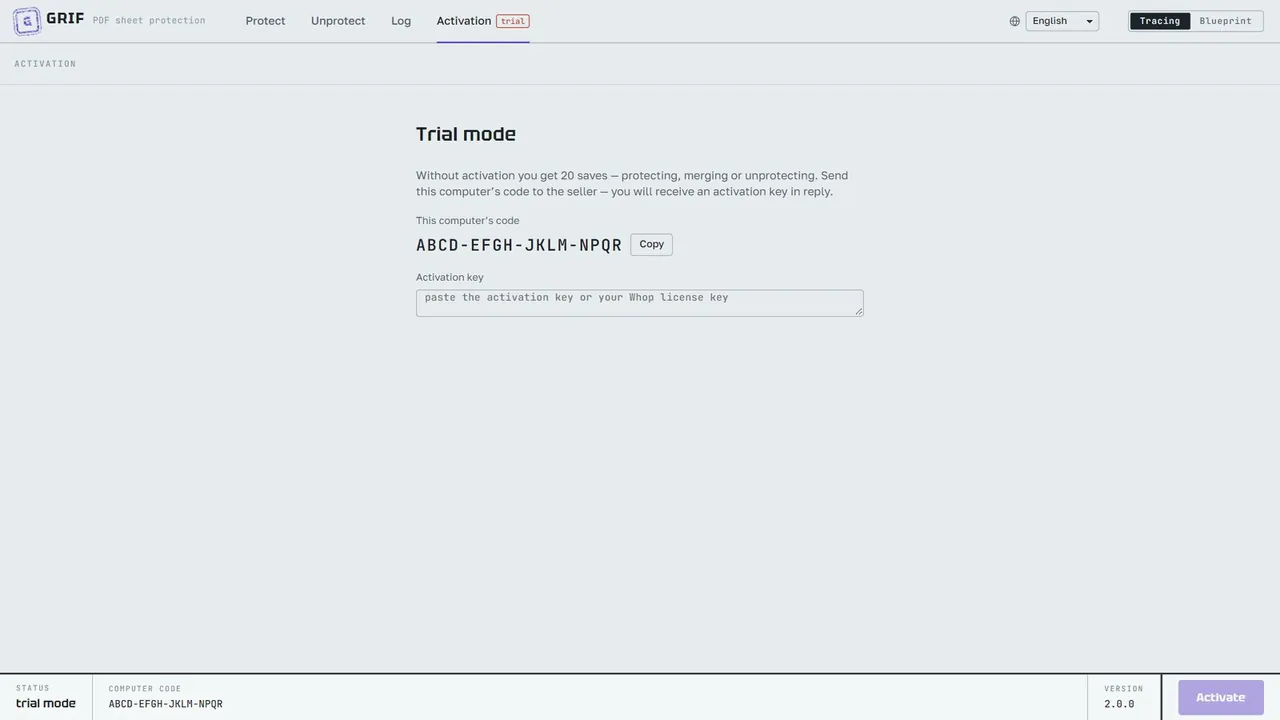
Without activation up to 20 results can be saved — protection, merging or unprotecting (each saved file counts as one). The preview works without limits. Until the program is activated, the “Activation” tab carries a “trial” badge.
- Open the “Activation” tab and click “Copy” next to this computer’s code.
- Send the code to the seller — you will receive an activation key in reply.
- Paste the key into the “Activation key” field and click “Activate”.
The key is bound to the computer (the Windows identifier and the motherboard) and will not work on another PC or on a virtual machine deployed from the same image. After replacing the motherboard or reinstalling Windows you will need a new key.
10Language and theme
Choose the language from the list with the globe icon in the window header. Available languages:
- Русский
- English
- 中文
- Español
- हिन्दी
- العربية
- Français
- Português
- Deutsch
- 日本語
The language changes instantly, without a restart: the interface, error messages, the stamp and the window title are translated. Default values — the watermark text and the “View only” and “Unprotected” folder names — are translated too, while anything you typed yourself stays as it is. For Arabic the window is mirrored right-to-left.
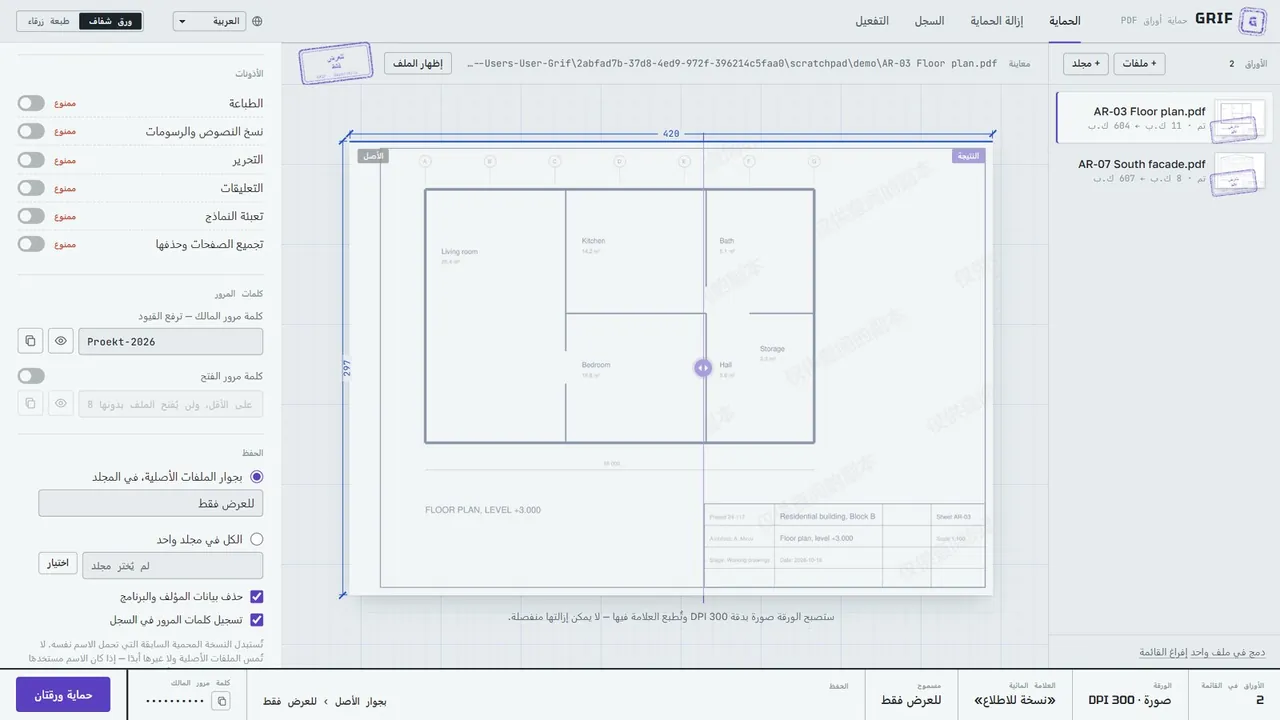
The “Tracing / Blueprint” switch changes the theme: light like tracing paper, or dark like a blueprint.
11Security and limitations
- Embedded files, JavaScript and auto-actions are removed from the protected copy; ordinary links and jumps stay.
- DOC and XLS are opened with macros disabled. A conversion that hangs is stopped: Word and Excel after 5 minutes, AutoCAD after 15.
- Temporary copies made during conversion are encrypted with a random session password and deleted when the program exits.
- Passwords in the settings and the log are encrypted with Windows (DPAPI) plus an extra program key: they can be read only under the same user account on the same computer.
12Where data is stored
| Settings and log | %APPDATA%\Grif (settings.json, history.json) |
| Temporary files | %APPDATA%\Grif\converted and %APPDATA%\Grif\uploads — cleaned automatically |
| Results | the “View only” folder next to the originals, or the folder you chose |
Uninstalling the program keeps the settings and the log. If you move the settings folder to another computer, the stored passwords cannot be decrypted there.
13Questions and troubleshooting
The program window does not open
Install Microsoft Edge WebView2 Runtime (Evergreen Standalone Installer, x64) from the Microsoft website and start Grif again.
DWG, DOC or XLS is not converted
Make sure AutoCAD, Word or Excel respectively is installed and activated. If that program shows a question window (for example, about updating links), the conversion stops on timeout — open the file manually, answer the question and save it.
“The file is locked with an open password”
Such a file cannot be protected again while the password is on it. Remove the protection on the “Unprotect” tab and add the file again.
“The owner password did not match”
Check the keyboard layout and letter case. If the file was protected in Grif on this computer, turn on “Try passwords from the log”.
“The key does not match this computer”
Make sure the key was copied completely. Keys are issued for the computer code from the “Activation” tab; after replacing the motherboard or reinstalling Windows the code changes — request a new key.
Keyboard shortcuts
| Ctrl+O | add files (on the “Protect” and “Unprotect” tabs) |
| ← → | move the comparison divider in the preview (when it is focused) |